- First, ensure your machine is completely shut down (You can press Control + Option + Shift + Power keys to reset the SMC).
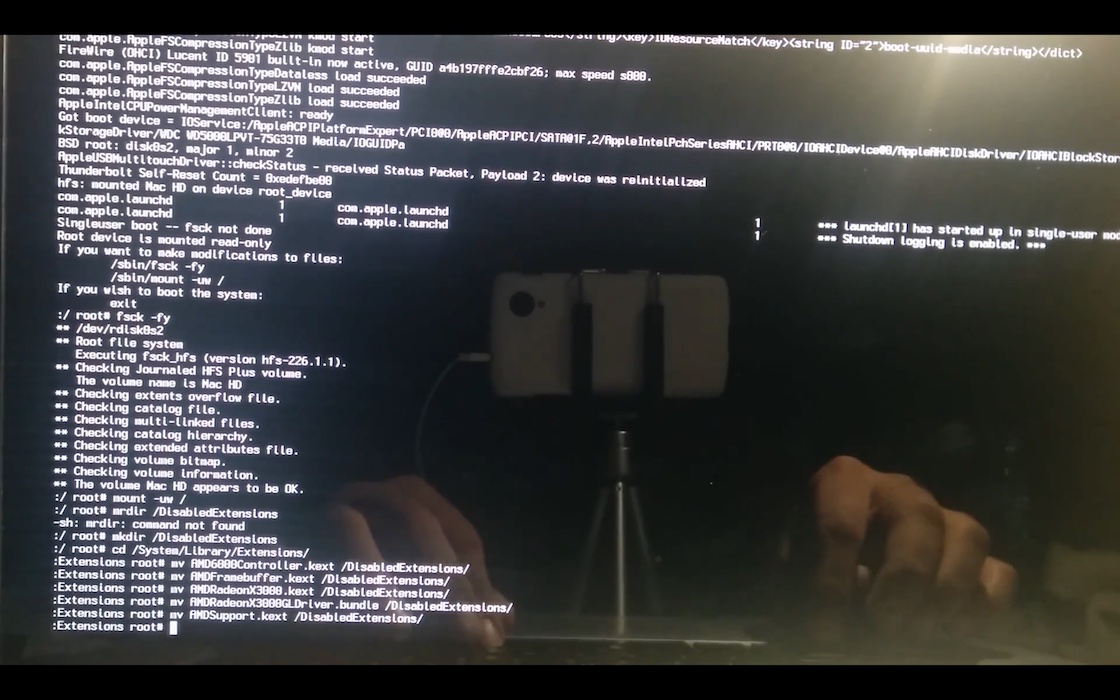
- Now, boot your machine while holding the Command + S keys. As the system boots, it should display white text on a black screen, and should eventually stop at a prompt.
- At this prompt, enter the following command and press Return:
nvram fa4ce28d-b62f-4c99-9cc3-6815686e30f9:gpu-power-prefs=%01%00%00%00
- Next, enter reboot, and press Return.
- Immediately after running the reboot command, hold down Command + R (if you're running OS X 10.11 or later) to boot into Recovery Mode. If you don't have a Recovery Partition, you can boot from a Mac OS installer USB drive.
- Once booted in Recovery Mode, open Terminal, and run the following command:
csrutil disable
- Reboot the system.
- Once the system reboots, it should now successfully boot into your install of OS X. Now, you'll need to download the program found here.
- Run the program, follow the prompts, and enter your password when prompted.
- Once the tool finishes running, your system should now run without the dedicated graphics, and should work completely normally.